Deploying One Git Project to Both GitHub and Hugging Face Spaces
Build log on configuring one local Git project with both a GitHub remote and a Hugging Face Spaces remote, understanding origin vs space, and deciding when to push to each deployment target.
Problem
Common Mistake: Assuming One Push Updates Everything
Implementation
Checking the Configured Remotes
Result
Lessons Learned
Topic
Web DevelopmentIntroduction
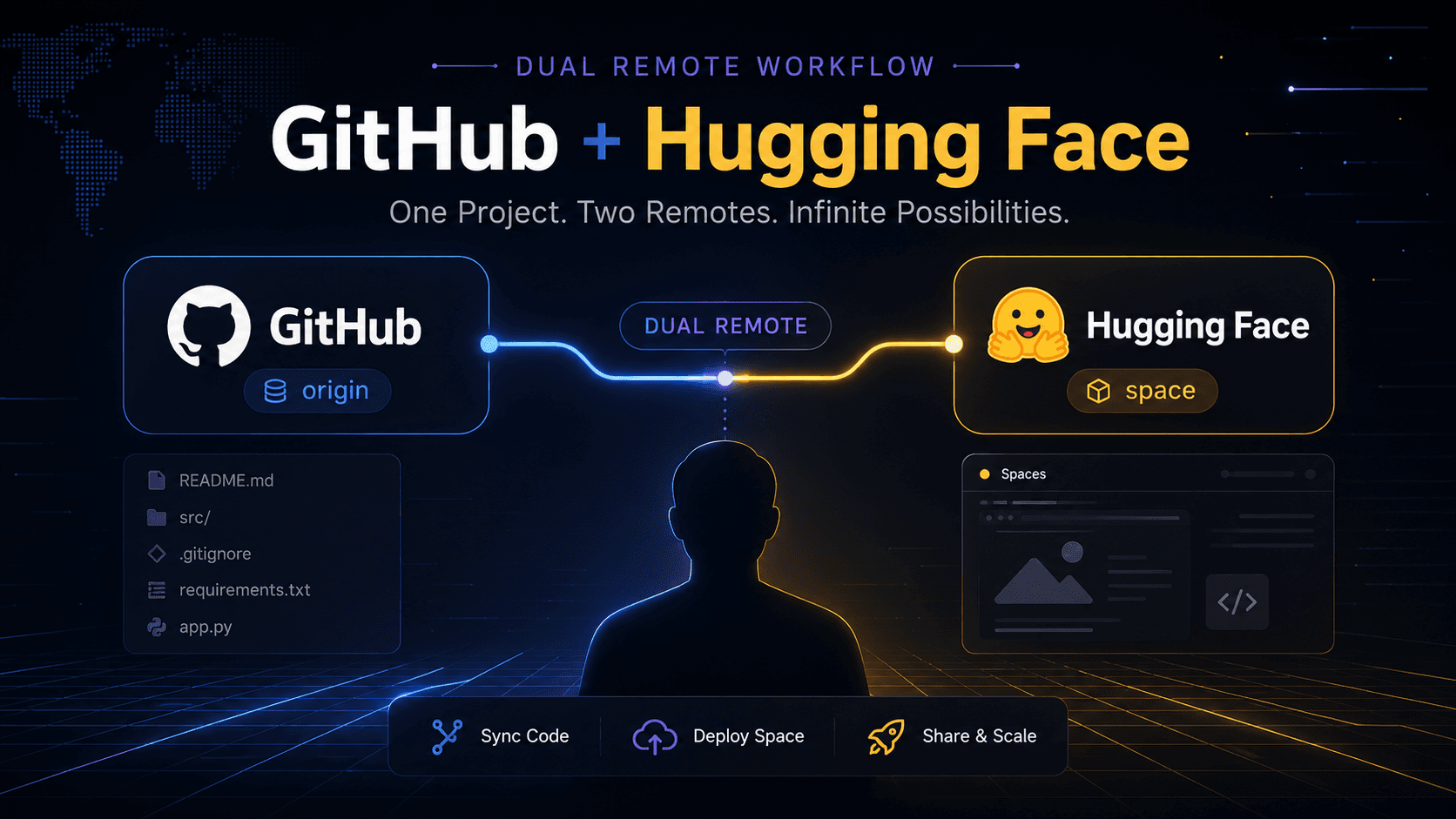
While working on an AI demo project, I ran into a Git workflow question that was simple but easy to confuse: if the same project has both a GitHub repository and a Hugging Face Space, do I need to push to both? The project had one local folder, but two remote destinations. GitHub was used as the main source-code repository, while Hugging Face Spaces was used as the live demo deployment target.
The Situation
After updating the project description, I committed the change locally:
bashgit commit -m "Update project description"The commit succeeded:
bash[main fa3cb12] Update project description
 1 file changed, 1 insertion(+), 1 deletion(-)
Then I tried to push the project. The confusing part was that this repository was connected to more than one remote. It had a GitHub remote and a Hugging Face Space remote.
Checking the Configured Remotes
To inspect the remote setup, I used:
bashgit remote -vThe output looked like this:
bashorigin  https://github.com/52147/Novelty-Aware-Research-Agent.git (fetch)
origin  https://github.com/52147/Novelty-Aware-Research-Agent.git (push)
space   https://huggingface.co/spaces/debrah1/novelty-aware-research-agent (fetch)
space   https://huggingface.co/spaces/debrah1/novelty-aware-research-agent (push)
This showed that the local project had two remotes:
origin → GitHub repository
space → Hugging Face Space
That meant a normal `git push` would not necessarily update both places. Each remote had its own purpose.
Understanding origin vs space
In this setup, `origin` is the GitHub repository. This is where I keep the main version of the source code, project history, README, paper-related files, and general development record.
`space` is the Hugging Face Spaces repository. This is where the deployable demo lives. Pushing to this remote can trigger the Hugging Face Space to rebuild and update the live app.
The important point is that Git does not treat these as one destination. Even though both remotes point to the same project idea, they are separate repositories.
The Core Question: Do I Need to Push to Both?
The answer depends on what changed.
If I changed general source code, documentation, or project history that should be preserved on GitHub, I should push to GitHub:
bashgit push origin mainIf I changed files that affect the live Hugging Face demo, I should also push to the Space remote:
bashgit push space mainIf the same codebase is used for both the GitHub repo and the Hugging Face deployment, then after a meaningful app change, pushing to both remotes makes sense.
The Basic Workflow
The simplest workflow is to commit once, then push the same commit to both remotes:
bash# Check current status
git status

# Stage changes
git add .

# Commit changes
git commit -m "Update project description"

# Push to GitHub
git push origin main

# Push to Hugging Face Space
git push space main
This keeps GitHub and Hugging Face synchronized. GitHub remains the source-code record, while Hugging Face receives the same update for deployment.
When I Would Push Only to GitHub
Not every change needs to update the live demo. For example, I would usually push only to GitHub if I changed research notes, paper drafts, internal documentation, old experiments, or files that are not used by the Hugging Face app.
In that case, the command is simply:
bashgit push origin mainThis avoids unnecessary Hugging Face rebuilds.
When I Would Push to Both
I would push to both GitHub and Hugging Face when the change affects the public demo. Examples include updating the app UI, fixing a bug in the demo, changing model-loading logic, editing the README shown on the Space, updating dependency files, or modifying configuration files used by the Space.
The workflow is:
bashgit push origin main
git push space main
This makes sure the repository history and the deployed demo stay aligned.
Common Mistake: Assuming One Push Updates Everything
The main mistake is assuming that because the project is one local folder, one push will update every connected platform. That is not how Git remotes work. A local repository can have multiple remotes, but each push targets one remote unless you explicitly configure more advanced push behavior.
So this command:
bashgit push origin mainupdates GitHub, not Hugging Face.
And this command:
bashgit push space mainupdates Hugging Face, not GitHub.
Optional Shortcut: Push to All Remotes
Git also supports pushing to all remotes, but I prefer to be careful with this because GitHub and Hugging Face do not always serve the same purpose.
One possible command is:
bashgit remote | xargs -L1 git push --allHowever, I do not use this as the default workflow. For deployment projects, explicit commands are safer because they make it clear which platform is being updated.
Recommended Setup
For this kind of project, I prefer a clear two-remote setup:
origin = GitHub source repository
space = Hugging Face deployment repository
Then I use explicit push commands depending on the change:
bash# Source-code update only
git push origin main

# Demo deployment update
git push origin main
git push space main
This keeps the workflow simple and avoids guessing where the latest code has been pushed.
Lessons Learned
The biggest lesson is that remotes are destinations, not project types. GitHub and Hugging Face can both point to the same project, but Git treats them as separate places. If I want both platforms updated, I need to push to both explicitly.
For AI demo projects, this distinction matters because GitHub is often the public code record, while Hugging Face Spaces is the live deployment environment. Keeping both updated intentionally makes the project easier to maintain and easier to explain.
Commands Used
Here is the full command reference from this workflow:
bash# Check remotes
git remote -v

# Check project status
git status

# Stage changes
git add .

# Commit changes
git commit -m "Update project description"

# Push to GitHub
git push origin main

# Push to Hugging Face Space
git push space main
The key is not the number of commands. The key is knowing which remote each command updates.
What this note covers
- Introduction
- The Situation
- Checking the Configured Remotes
- Understanding origin vs space
Related technical notes
Last updated: June 22, 2026
Related category: Web Development
Related stories
Curated reads to continue the thread.
Fixing Git Push Upstream Errors After Creating a New Remote
A practical Git build log on fixing the fatal: current branch main has no upstream branch error after connecting a local project to a new remote repository.
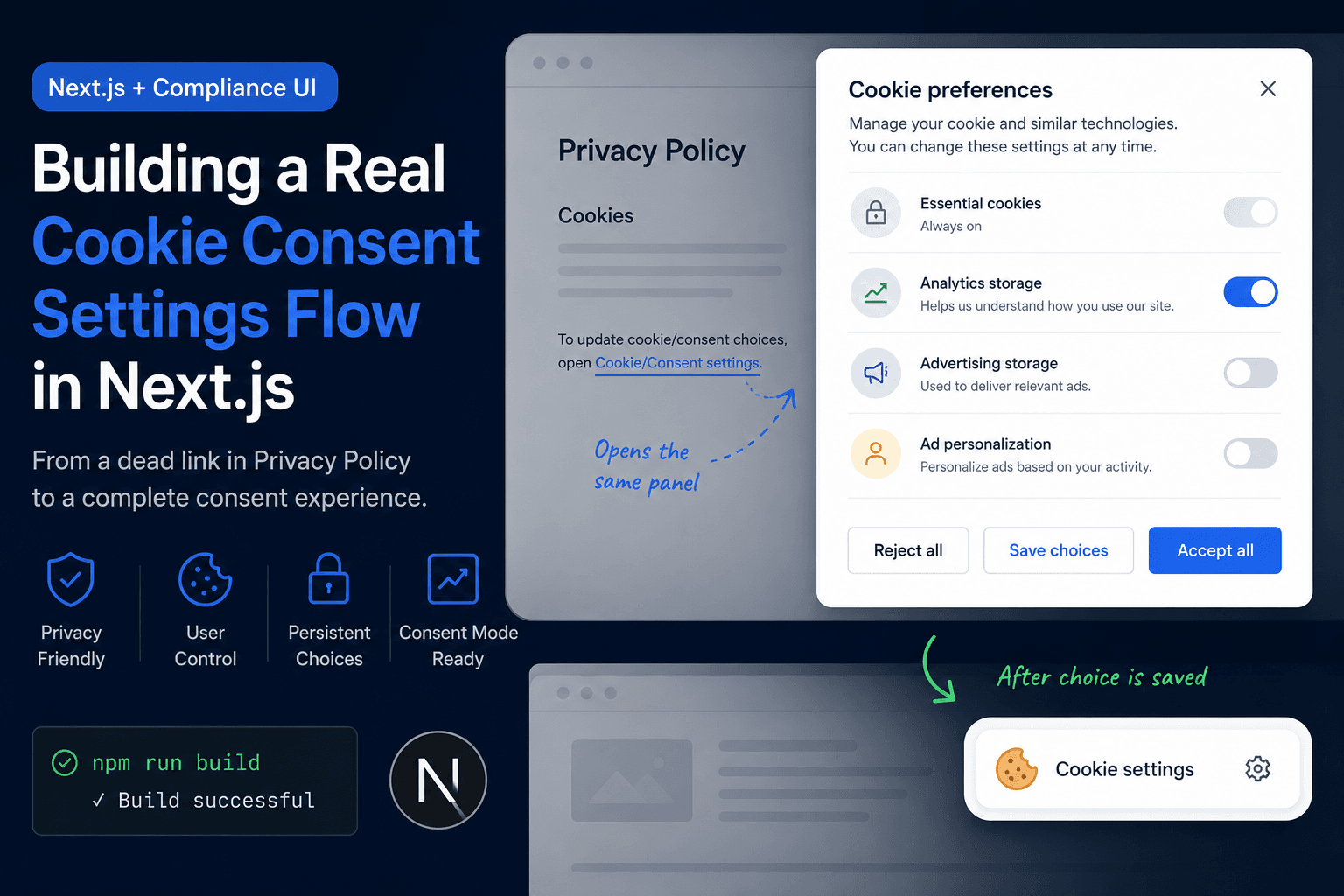
Building a Real Cookie Consent Settings Flow in Next.js
A practical frontend implementation note on fixing a Privacy Policy cookie settings link that did nothing, then turning it into a real consent settings flow with a bottom-right banner, saved choices, and a reusable settings panel.
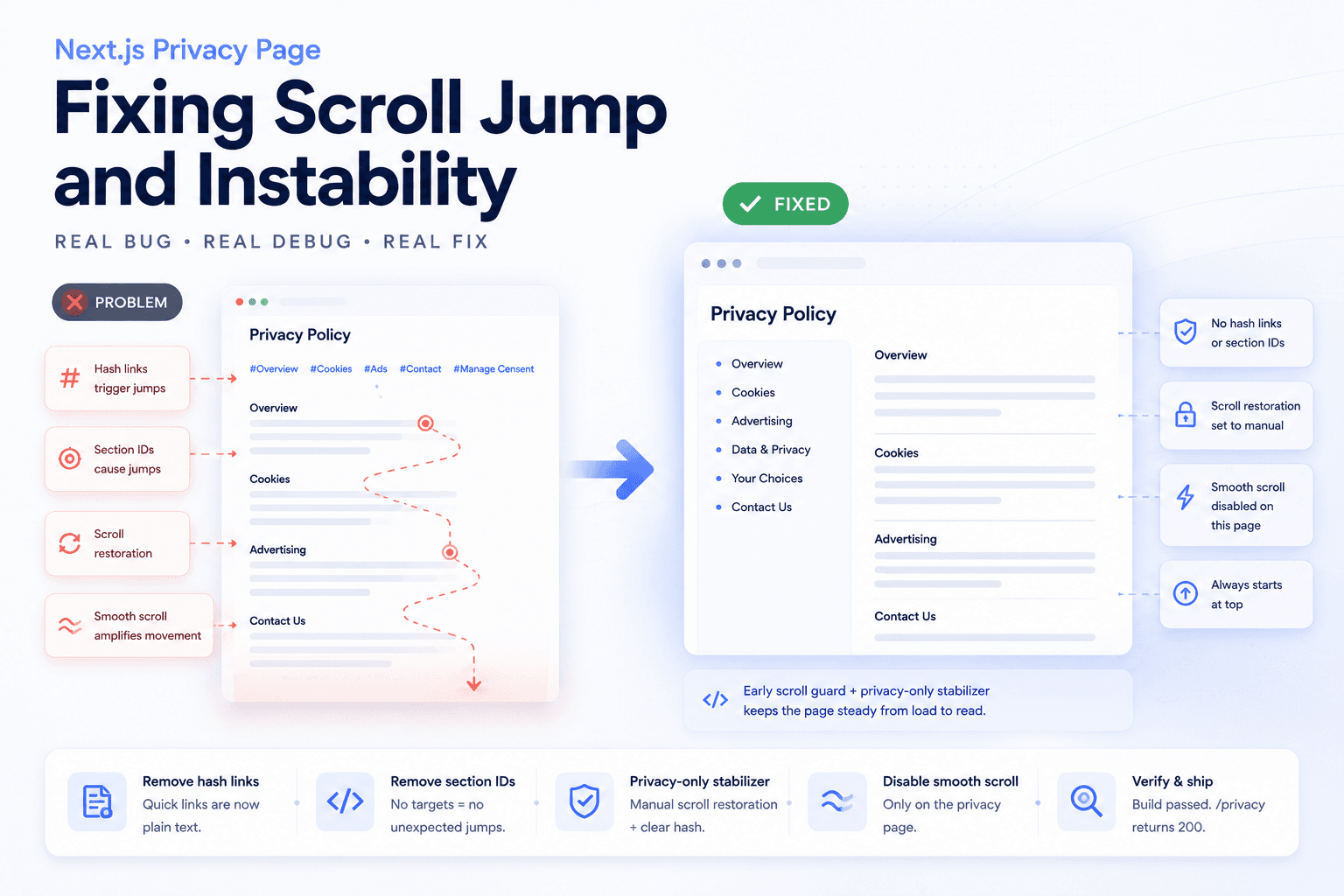
Debugging a Privacy Page Scroll Jump Bug in Next.js
A practical frontend debugging note on fixing a Privacy Policy page that kept jumping up and down because of hash anchors, smooth scrolling, browser scroll restoration, and page-specific navigation targets.

Fixing Low Value Content Risk on a Small Technical Site
A practical site audit note on why a small tool or service-style site may look weak for AdSense, and how to restructure it into a clearer technical content site with categories, author context, internal links, and real implementation notes.
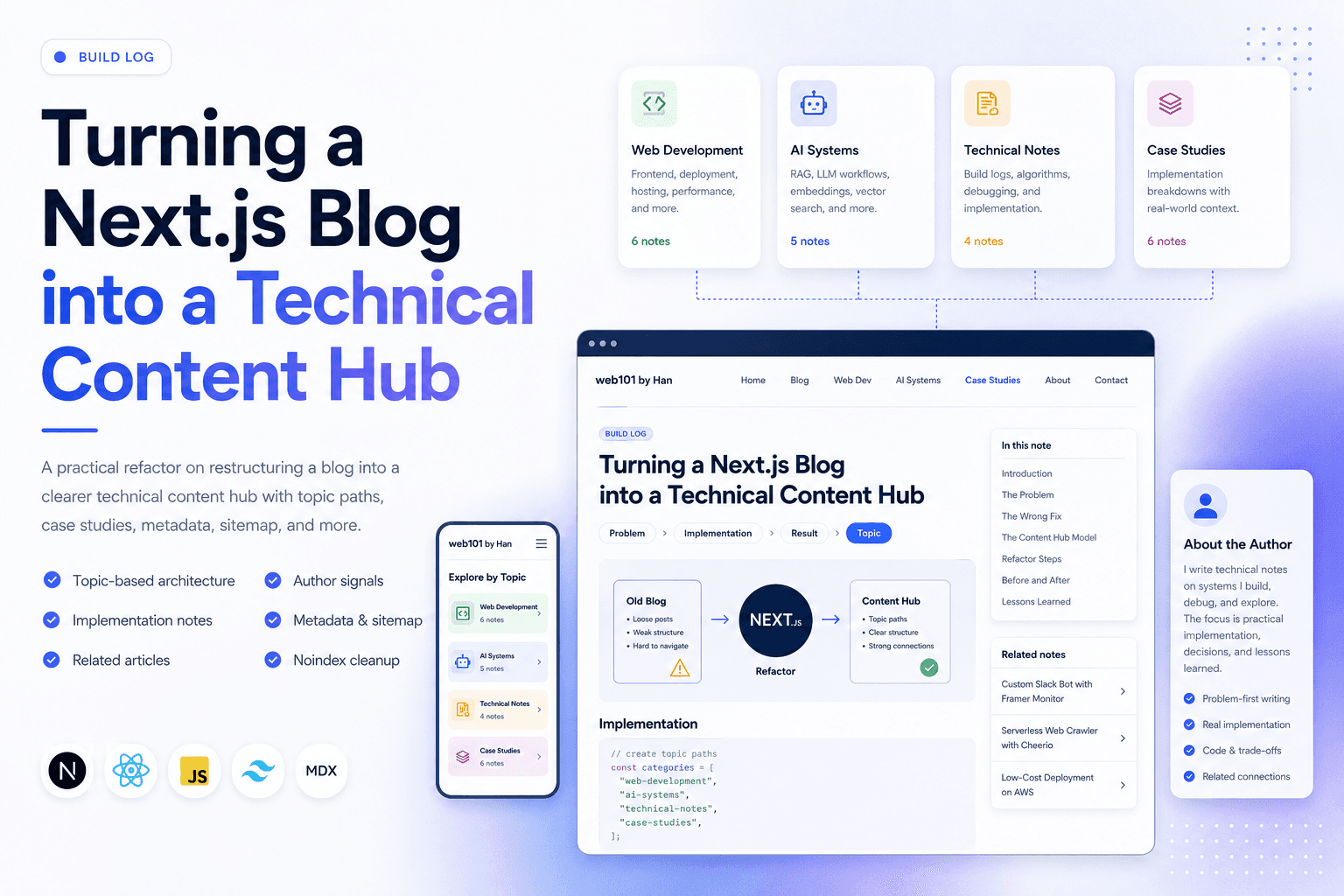
Turning a Next.js Blog into a Technical Content Hub
A practical Next.js refactor note on restructuring a blog into a clearer technical content hub with topic paths, case studies, author signals, metadata, sitemap updates, and article-level internal linking.
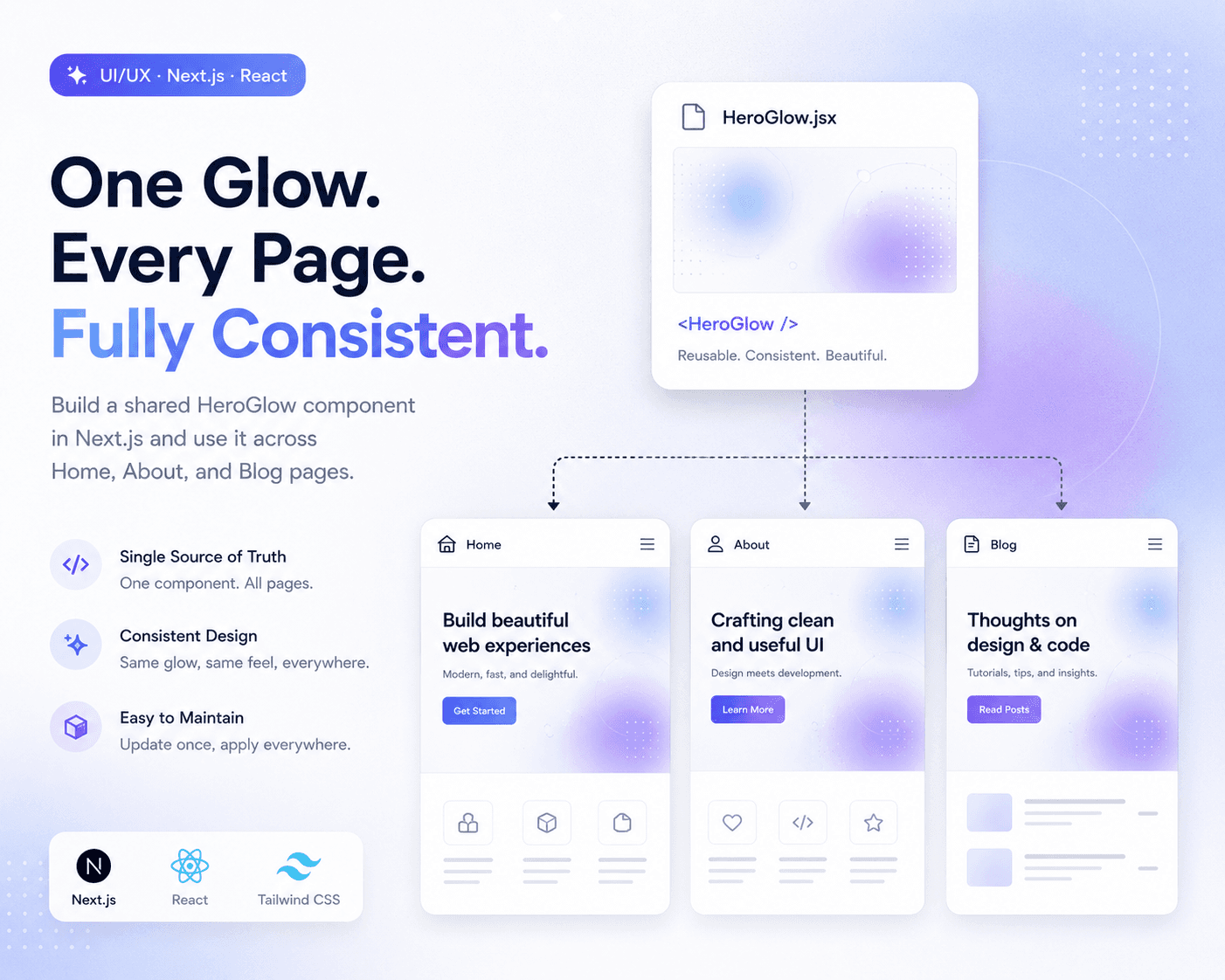
Refactoring Hero Glow Effects into a Shared Next.js Component
A practical frontend refactor note on making Home, About, and Blog hero sections visually consistent by extracting the shared glow background into one reusable Next.js component.
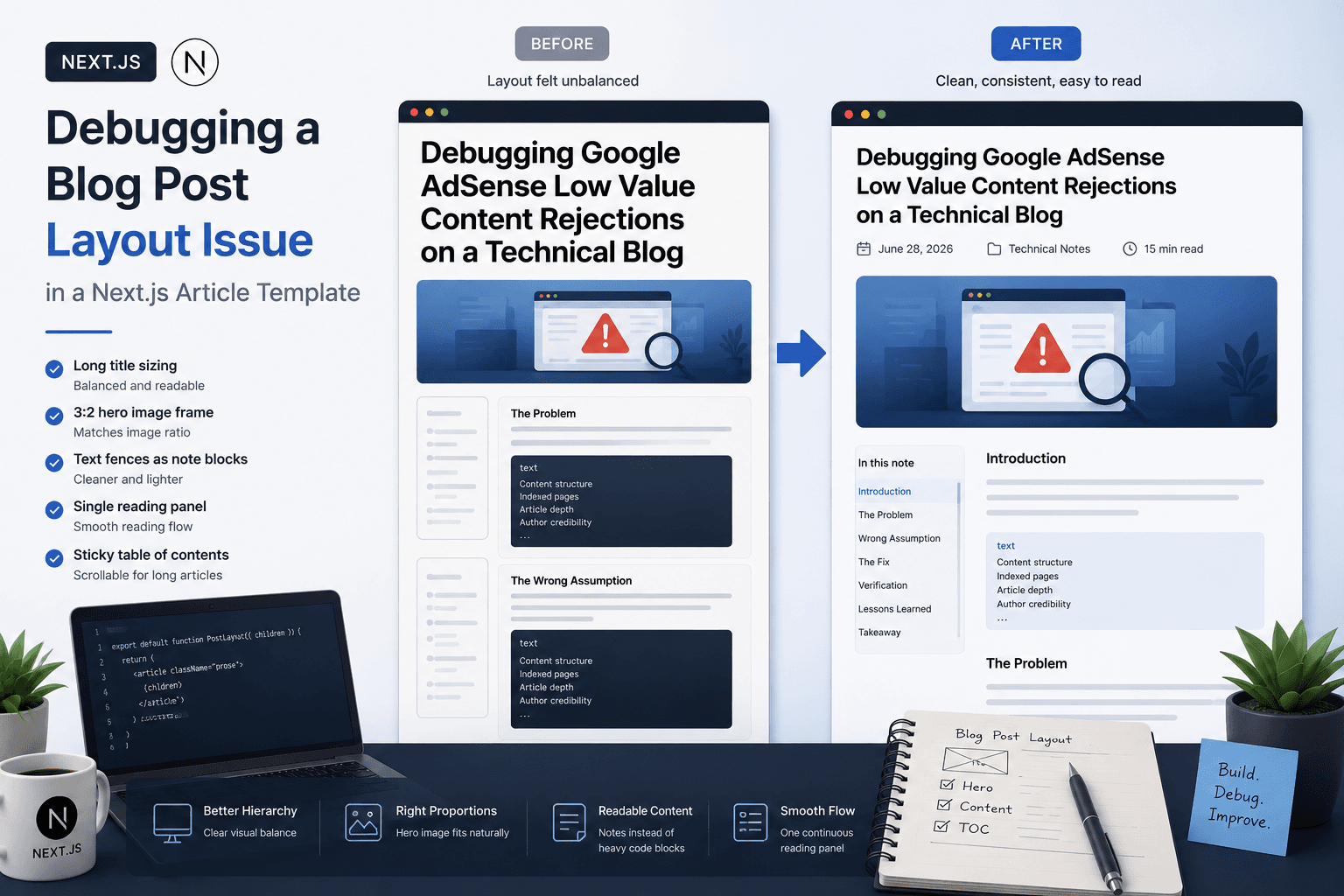
Debugging a Blog Post Layout Issue in a Next.js Article Template
A practical frontend debugging note on fixing a Next.js blog post page where the layout issue came from the article template, not the post content.
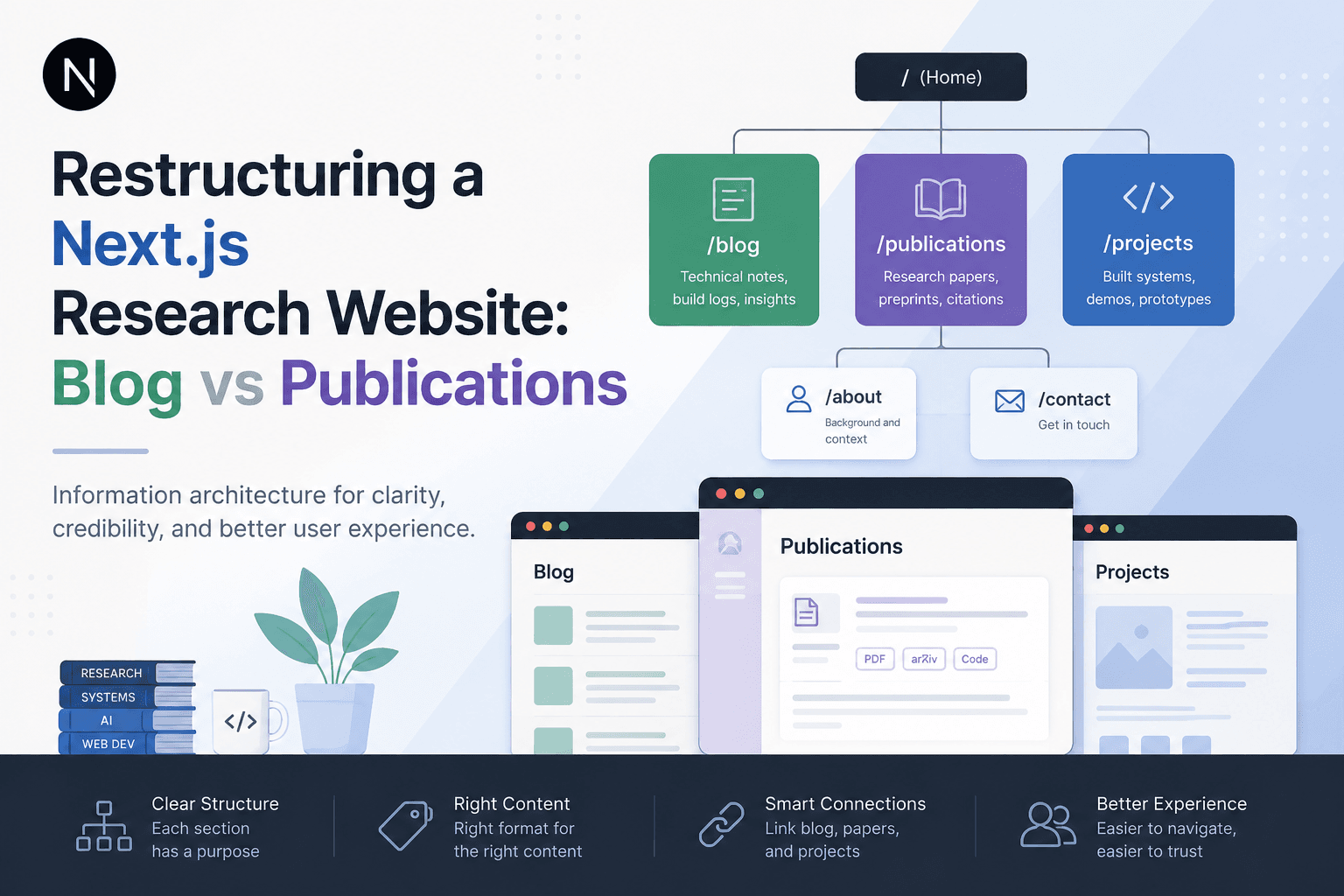
Restructuring a Next.js Research Website: Blog vs Publications
A practical information architecture note on separating blog posts, publications, and projects in a Next.js research website so the site feels clearer, more credible, and easier to navigate.